Please either post in this thread to let me know if you’d be willing to test and give feedback on a beta version of the Readlang iOS app I’m working on. Or, if you prefer, you can contact me by email at steve@readlang.com. You’ll need a device running iOS 18 or later.
I’ve been working on the iOS app for a while and I think it’s very close to being ready to launch. It shares a lot of the code from the current web app, but it adds some new functionality which is only possible using a native app. This includes:
A built in browser allowing you to read other websites within the Readlang iOS app and have access to tap-to-translate. This provides the same functionality you currently get with the Chrome or Firefox extensions, but on iOS.
Ability to use more on-device TTS voices. iOS allows you to install more voices, including higher quality “enhanced” versions, for use with Siri. These aren’t available to normal web-apps but are available to native apps. In the Readlang iOS app these better voices are available to all users, even those on the free plan.
Read Aloud feature can keep playing audio even if you turn the screen off, so that you can listen when on the go
Daily practice reminders (optional) as proper iOS notifications instead of emails or web notifications
Some light haptic feedback (optional) for when you translate, practice, reach your daily streak goal.
On top of the above, as part of making Readlang feel more at home on iOS, I’ve also made improvements to the look and feel which also benefit the webapp as well. If you reload Readlang now you should hopefully notice that the buttons and menus and UI in general feels a little more polished and consistent compared to before. There’s still room for more improvement of course and I plan to continue gradually making Readlang feel more polished.
I would love to be a volunteer. I use Readlang every day for two or three hours. I also work with computers, though not in web design or anything related.
Thanks @nakster and @georgiefeyerabend. I’m waiting for Apple to approve a version for testing. When they do I’ll contact everyone who has offered to help directly with instructions on how to install it.
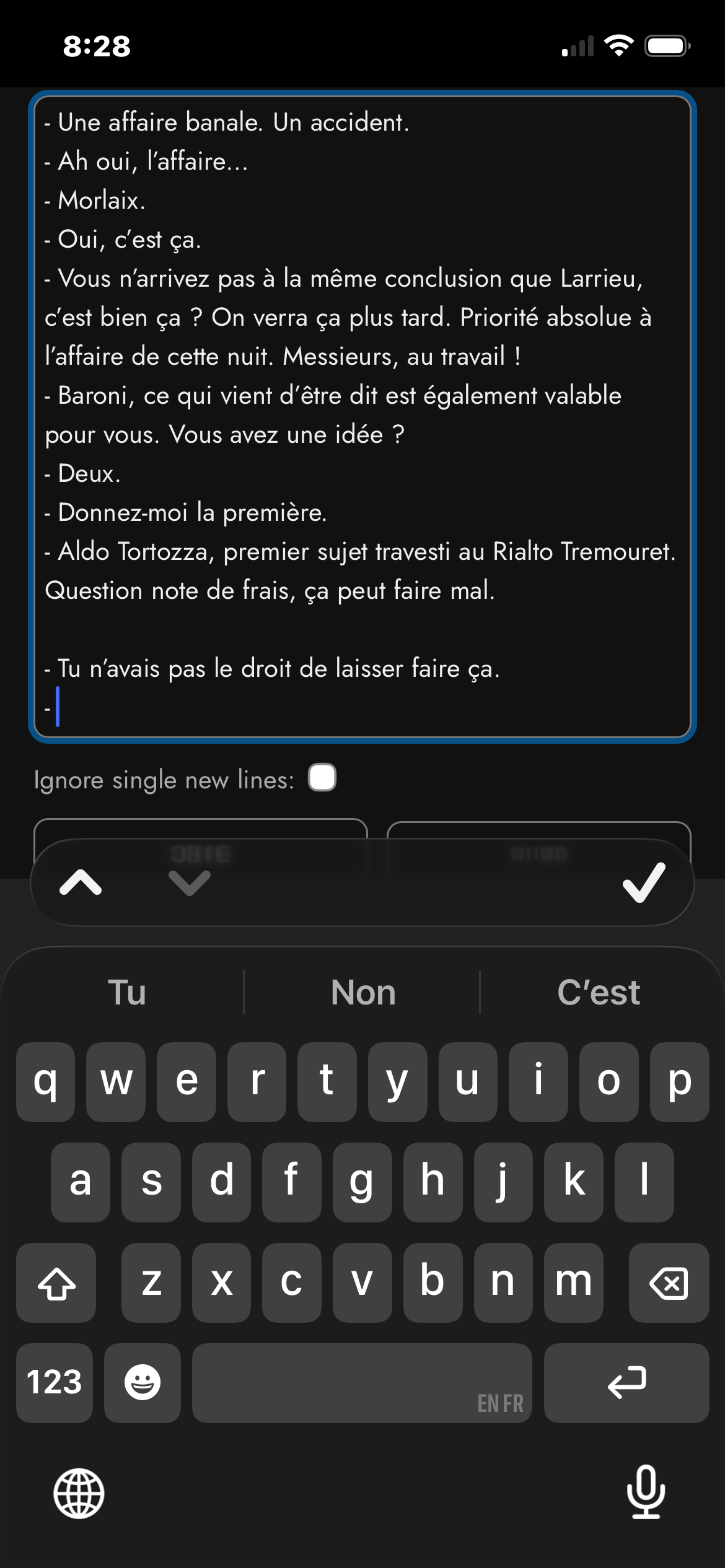
I would be excited to test your app! I am also testing a similar app called Zaban. A quick question about the new app: in the “Edit text” menu, will the undo button have an “Are you sure?” warning? I ask because when I use the app on my iPhone, the check button ✓ to finish editing is above the undo button, so if I’m not careful I can lose a lot of writing. Thank you.
Everyone who has asked to test the app should have received an email from me. If anyone else wants access, please keep the requests coming!
Right now it doesn’t. I’ll consider this. But for now, you should be able to tap elsewhere on the underlying webpage, as long as it’s not in another text input box, and it will dismiss the on-screen keyboard, at least that’s how it works for me. Or, if the “Save” button is visible alongside “Undo”, you could tap that. Or perhaps I’ve misunderstood your complaint or are using a non-standard keyboard which behaves differently. If so please let me know, ideally with a screenshot.
Thanks for the screenshot @perry9574, that made it clear. I’ve just made two changes to the Edit text view so this shouldn’t happen anymore:
The “Undo” button has been renamed “Discard changes” and now asks you to confirm before throwing away your edits.
The Save and Discard changes buttons are now aligned to the left rather than stretching across the full width, so they’re no longer directly below the keyboard’s ✓ button.
This is great news, esp the embedded browser bit. Might even be sufficient for me to ditch Android and get an iOS phone, haha. Couple of bits of feedback
could we have an option for replacement text in the browser, rather than translations hovering above? I don’t like the way the rest of the text jumps down when the hover appears. You could click to toggle the text/translation on/off. Or maybe have an undo/redo button. (maybe this exists already and I haven’t checked, if so my bad)
could we have the full text of a page available in a single screen, like a web page, rather than have small snippets you have to click through?
Could we ditch the green/cream colour scheme in favour of something more modern and cleaner, and (pretty please) have a dark mode also?
Many thanks. Readlang is potentially great on iOS and I wish you every success
Thanks for the feedback @justin. Most of this already exists, so here’s where to find it.
Yes. In the iOS app’s built-in browser, tap the “…” button by the address bar, then Translation Settings → Style. The options are:
Highlight (the default) and Underline: the translation appears above the word.
Replace: the translation replaces the word itself.
Popover: the translation floats above the word without pushing the rest of the text down.
Replace is what you are describing but it still results in text moving a little since the translation won’t be exactly the same width. Popover will not move the text at all. The same Style option is in the menu of the Chrome and Firefox extensions too.
Tapping a translated word again removes the translation and shows the original text. By default that also deletes the word from your word list. If you’d rather keep it, set Translation Settings → Deselect Behavior to “Keep”.
In the built-in browser, pages stay exactly as the website lays them out, so you scroll them as normal. The page-by-page view is only for texts in Readlang’s own reader. There’s no scroll mode there at the moment. Readlang is optimized to stay fast and responsive on very long texts (novel length), and showing a whole text like that in one huge scrollable page would slow things down a lot.
In the reader, open the Settings tab (or “Open Settings…” in the menu at the top of the reader) and choose a Theme. The cream colour is “Light”. “E-Ink” is plain black on white and “Dark” is a dark mode. For now the theme only applies to the reader page, not the rest of the app.
The Read Aloud voices within the iOS app should include all the voices you see within your iOS browser, at least that’s how it is in my testing so far. What’s more, the voices in the iOS app include extra voices that you might have installed for Siri, including the ones that Apple calls “Enhanced” which are meant to be higher quality. You can install these via your iPhone/iPad Settings. If you are talking about browser voices on a completely different device, then these are very likely not available on iOS at all.
Just want to say I’ve been thoroughly enjoying the iOS app thus far and just renewed for another year. Thanks for all your hard work Steve, I’ve already seen some of my beta feedback integrated into the app.