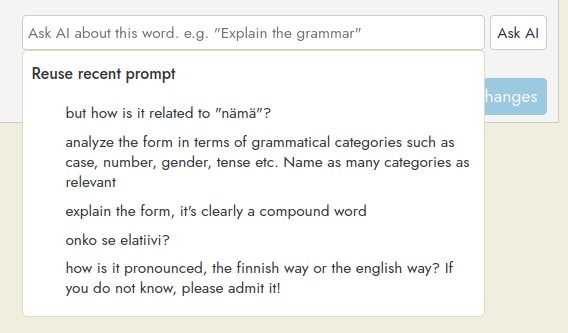
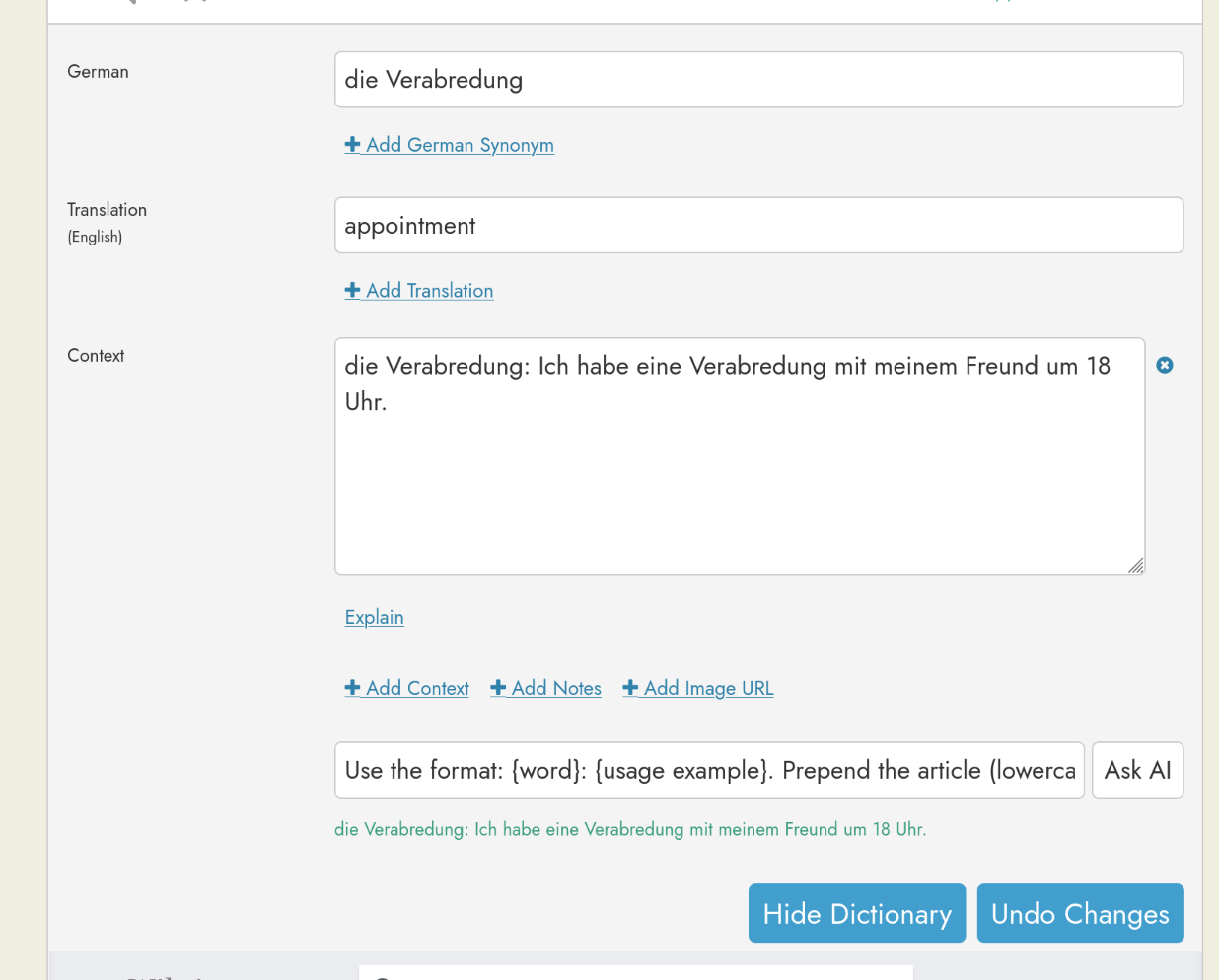
It works well, but currently it’s a bit tedious to manually copy the AI response to the context field for every word, I even thought about using a browser extension like Tampermonkey to write a script that will copy this text to the context automatically.
Do you think that maybe it could be a good feature to be able to generate context with a custom prompt?
@Steve I really like the custom ChatGPT prompt, but would you consider letting us edit the default explanation prompt? I’d like to add that it should give me the case, gender, and number for nouns or adjectives, and this applies to almost all words. It would save clicks/time (and API cost for you), if we could just edit the query that is already run rather than clicking to do a second query.
I understand it is ephemeral (I found out the hard way), but I wonder if it could be made copiable. I had two similar phrasal verbs in a Dutch text, and asked it for five example sentences for each, which it did excellently, also explaining the difference. It really helped me to understand the difference, and it seems a shame for it to disappear into thin air. I tried to copy it, but it didn’t seem to be possible.
I’ve just tried it, and it’s working fine. It shows as green on the standard background, and it’s easy to highlight and then copy (with Readlang I use almost exclusively a small tablet). But I’m sure the time I’m talking about I was unable to highlight it. And it seems to me it was black on a white background. It was quite a long and detailed explanation, certainly not one that would fit on the existing page, so perhaps it opened up in a new window. However, I’ve just tried to force it to give me a longer explanation, and it’s still in copyable green. So perhaps I was hallucinating.